
Wayvy support
See yourself at every weight.
Wayvy pairs every weigh-in in Apple Health with a photo of you from the same day, so you can see the change, not just the number. This page covers setup, a tour of every screen, common questions, privacy, and how to reach us.
Getting started
Up and running in three steps
Before you start: get your weight into Apple Health
Wayvy doesn't weigh you. It reads the weigh-ins already in Apple Health, so you need a way to get them there. You can type each one into the Health app by hand, but the easiest way is a smart scale that syncs to Health on its own, so every morning's number lands in Wayvy without you doing anything.
Withings makes Wi-Fi scales that do exactly this. Step on, and the weigh-in goes to the Withings app and from there into Apple Health, where Wayvy picks it up. Tapiki has no affiliation with Withings and earns nothing if you buy one.
The first run
Four short screens explain the idea and ask for the two permissions. Here's what you'll see.
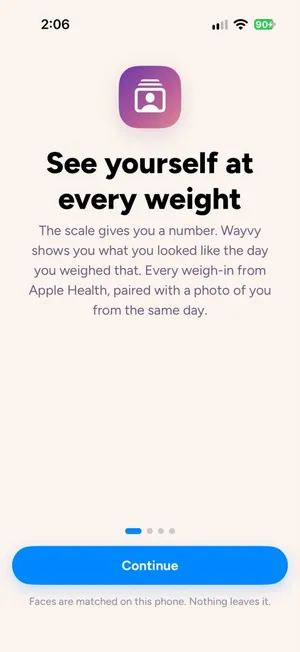
See yourself at every weight
The idea in one line: the scale gives you a number, Wayvy shows you what you looked like that day.

Made for the journey
Who it's for. When weight moves fast, the mirror can't keep up, and the photos are how you see the change.

How it works
You pick a few photos of yourself. Wayvy learns your face on your phone and finds you on weigh-in days.
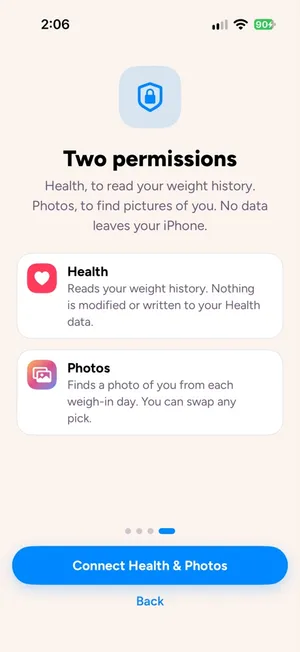
Two permissions
Health to read your weight, Photos to find pictures of you. Tap Connect Health & Photos and you're in.
Connect Health and Photos
Open Wayvy, swipe through the four intro screens, and tap Connect Health & Photos. iOS shows two permission prompts: Health, to read your weight history, and Photos, to find pictures of you. Both are read-only. Wayvy never writes to Health or changes your photos. If you're asked how much photo access to give, choose Full Access so Wayvy can search your whole library.
Add a few photos of you
Next comes the Face matching screen. Add several clear photos where you are the largest face in the frame. More variety is better: different years, angles, lighting, with and without a hat or glasses. Wayvy learns your face from these, on your phone, and uses them to recognize you in photos taken on weigh-in days. Tap Done and the first scan starts.
Watch the timeline fill in
Every weigh-in from Apple Health appears on the chart right away. A progress card at the top shows the scan working through your weigh-in days, newest first, and photos appear on the timeline as each day is resolved. On a large library the first pass can take a while; you can keep using the app, and the scan picks up where it left off if you leave.
Tour
Every screen, explained
Wayvy has four screens. Here is what each one shows and what you can do there.
Your timeline
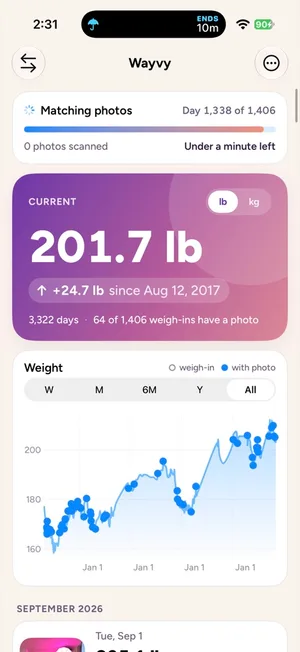
Wayvy opens on your current weight, the change since your very first weigh-in, and how many of your weigh-ins have a photo. The lb / kg toggle on that card switches units everywhere in the app.
The chart below draws every weigh-in in Apple Health. Hollow points are weigh-ins, filled points are days with a photo of you. Pick a range from a week to all time. Scroll down and the weigh-ins are listed by month, each with its photo and the change since the last one.
While a scan is running, a progress card at the top shows which day it's on and roughly how long is left. Photos that were already scanned aren't scanned again, which is why a second pass is quick.
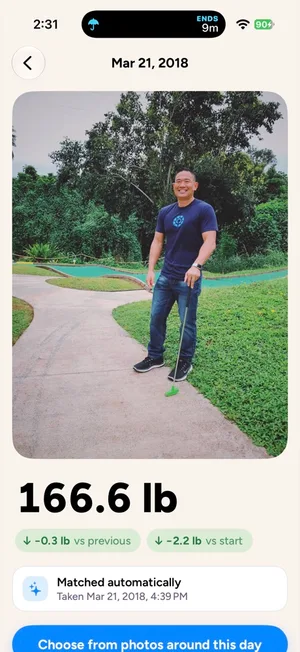
A weigh-in day
Tap any entry to see the photo full size with the weight from that day, the change from the previous weigh-in, and the change from your first one.
The note under the photo tells you how it was chosen, either matched automatically or picked by you, and when the photo was taken.
Wrong photo, or just not your favorite from that day? Tap Choose from photos around this day to see everything from three days either side, or pick any photo in your library. Your pick stays until you reset it to automatic.
Compare any two days
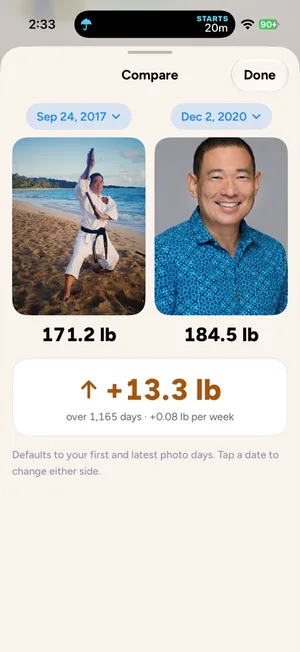
The compare button in the top left of the timeline puts two days side by side: photo, weight, and the difference between them, with the number of days in between and the average change per week.
It starts with your first and latest photo days. Tap either date to choose a different one. This is the screen most people come back to.
Face matching
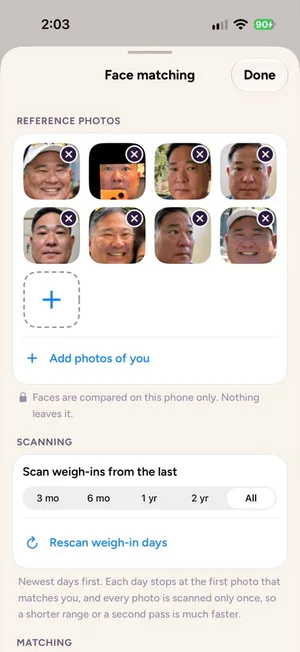
Open the ⋯ menu and choose Face matching to manage how Wayvy recognizes you. The reference photos at the top are what it compares against. Add or remove them any time; a handful across different years and settings works better than one perfect portrait.
Scan weigh-ins from the last sets how far back Wayvy looks, from three months to all time. Start narrow on a big library and widen it later. Rescan weigh-in days runs the matching again after you change anything.
Below that, a strictness slider controls how confident a match has to be. Move it up if Wayvy is matching other people, down if it's missing you. Faces are compared on your phone only. Nothing leaves it.
Common questions
If something looks off
My timeline is empty.
Wayvy builds the timeline from body weight samples in Apple Health, so two things need to be true. First, Health needs weight data: a connected scale that syncs to Health, or entries you add in the Health app under Body Measurements. Second, Wayvy needs read access. iOS doesn't tell apps whether Health access was granted, so if the timeline stays empty, open Settings → Health → Data Access & Devices → Wayvy and make sure Weight is turned on.
A weigh-in day shows no photo.
Wayvy only pairs a weigh-in with a photo taken on that same day, and only when it finds a face that matches your reference photos. Screenshots are skipped. If there is a photo you'd like to use, tap the entry and choose from photos taken around that day, or pick any photo from your library. Your pick sticks until you tap Reset to automatic.
Wayvy picked the wrong person, or missed me.
Matching depends on the reference photos. Use photos where you are the largest face, facing the camera, in decent light, and add a few from different years. Then open the ⋯ menu → Face matching and adjust the strictness slider: move it up if Wayvy matches other people, down if it misses you. Changing references or strictness rescans automatically, and days that already have a manual pick are left alone.
The first scan is slow.
Wayvy looks at each photo on a weigh-in day once, on your phone. If your library uses iCloud with Optimize iPhone Storage, photos that aren't on the device download first, which is the slow part. Narrow the scan range on the Face matching screen (three months up to all time) and widen it later. Results appear day by day as the scan runs, newest first, and a scan that gets interrupted resumes where it left off.
I gave Wayvy limited photo access.
Limited access works, but Wayvy can only look at the photos you selected, so most weigh-in days will have no match. To let Wayvy search your whole library, open Settings → Privacy & Security → Photos → Wayvy and choose Full Access.
I weigh in more than once a day. Which one counts?
Wayvy keeps one weigh-in per day: the first sample of the day, which for most people is the morning weigh-in.
Can I switch between pounds and kilograms?
Yes. Tap lb or kg on the current-weight card at the top of the timeline. The chart, timeline, and Compare view all update.
Does Wayvy write anything to Health or Photos?
No. Wayvy reads weight from Health and reads photos from your library. It never adds, edits, or deletes anything in either place.
My scale just synced. Why don't I see the new weigh-in?
Wayvy refreshes when Health reports a new sample, when you return to the app, and when you pull down on the timeline. If a new weigh-in doesn't appear, pull to refresh. If it still doesn't show up, check that the sample made it into the Health app first.
How do I remove everything Wayvy has stored?
Delete the app. Everything Wayvy keeps, including your reference photos, cached face data, and photo picks, lives in the app's private storage on your phone and is removed with it. Wayvy has no account and no server, so there is nothing to delete anywhere else.
What does Wayvy need to run?
An iPhone running iOS 17 or later, with weight data in Apple Health and photos in your library. Wayvy is built for the GLP-1 journey, but it works for anyone who weighs in and takes pictures.
Private by design
Wayvy has no account, no server, and no analytics. Your weight, your photos, and your face never leave your phone. Here is what each permission does.
Apple Health
Wayvy reads your body weight history to build the timeline. It reads only weight, never writes to Health, and never sends Health data anywhere. Revoke access any time in Settings → Health → Data Access & Devices → Wayvy.
Photos
Wayvy looks for photos taken on weigh-in days and compares faces in them to the reference photos you chose, using a model built into the app. No photo or face data leaves your phone, and your library is never modified. Revoke access in Settings → Privacy & Security → Photos → Wayvy.
Everything Wayvy stores, including your reference faces, cached face data, and photo picks, lives in the app's private storage on your device and is removed when you delete the app. It may be included in your own iCloud or computer backup, which is under your control.
The full policy is in the Tapiki App Privacy Policy, under Health and Photos (Wayvy).
Wayvy is not a medical device and does not give medical advice. Talk to your clinician about your treatment.
Still stuck, or have an idea?
Wayvy is made by a small team in Hawaiʻi and we read every message. Email us and you'll hear back from a person.
Get help
Tell us what you expected, what happened instead, and your iPhone model and iOS version. A screenshot helps. Please don't send your Health data; we don't need it and would rather not have it.
Email supportShare feedback
A feature you wish Wayvy had, something that felt confusing, or a note about how it's working for you. Ideas from people using the app shape what we build next.
Send feedbackYou can also write to sayhello@tapiki.com or by mail at Tapiki, PO Box 970944, Waipahu, HI 96797.