

Ampersand support
Every photo of the two of you.
Ampersand finds every photo of you and your person and puts them in one logbook, each with its date, place, a note, and stickers. This page covers setup, a tour of every screen, common questions, privacy, and how to reach us.
Getting started
Up and running in three steps.
-
Allow Photos
Open Ampersand, swipe through the four intro screens, and tap Allow Photos. That's the only permission Ampersand asks for, and nothing in your library is changed. If you're asked how much photo access to give, choose Full Access so Ampersand can search your whole library.
-
Add photos of you both
Next comes the People & matching screen. Add a few clear photos of yourself under You, then type your person's name and add a few photos of them under Your person. A photo of the two of you works for both: Ampersand asks which face is whose. Tap Done and the first scan starts.
-
Watch the logbook fill in
Ampersand looks through your photos newest first, and each photo with both of you in it appears in the logbook as it's found. On a large library the first pass can take a while. You can keep using the app while it runs, and a scan that gets interrupted picks up near where it stopped the next time you open the app.
Tour
Every screen, explained.
Ampersand has three screens: the logbook, an entry, and People & matching. Here is what each one shows and what you can do there.
Your logbook
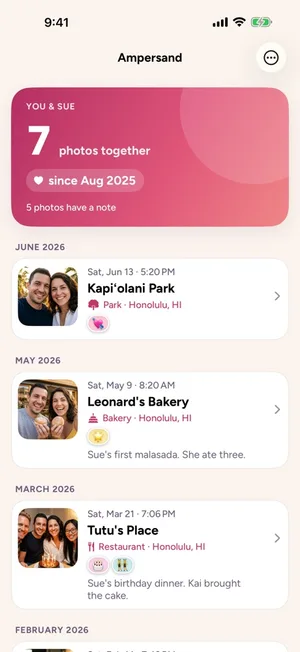
Ampersand opens on a card with your person's name, how many photos of the two of you it has found, and how far back they go.
Below it, the photos are listed by month, newest first. Each entry shows the date and time the photo was taken, the place, any stickers, and the start of your note.
The ⋯ menu in the top right has People & matching, Refresh, and Restore removed photos, which appears once you've removed one. You can also pull down on the logbook to refresh.
An entry
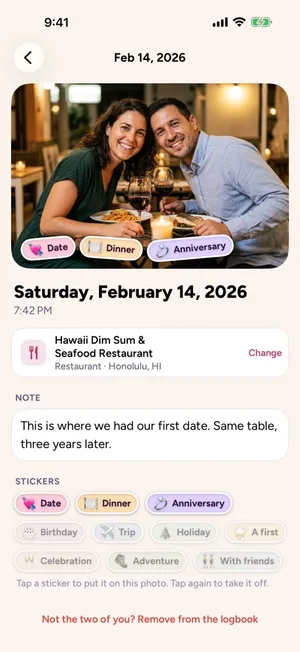
Tap any photo to open its entry: the photo full size, the date and time it was taken, and where.
The place comes from the location saved with the photo. When a restaurant, café, park, beach, or similar spot is close by, the entry shows its name with an icon for the kind of place; otherwise it shows the street address. If it picked the wrong spot, tap Change to choose another place nearby or the address.
Write a note in your own words, and tap a sticker to put it on the photo. Tap it again to take it off. There are ten: Date, Dinner, Anniversary, Birthday, Trip, Holiday, A first, Celebration, Adventure, and With friends.
Group photos count
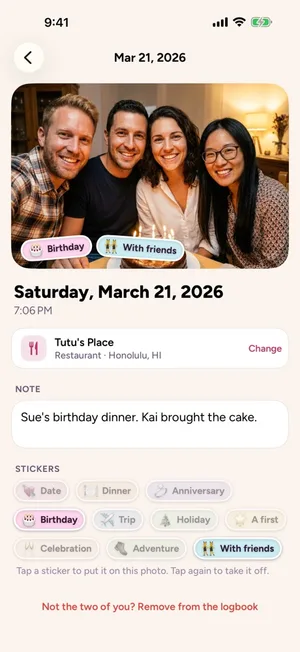
A photo makes the logbook when one face in it matches you and a different face matches your person. Anyone else in the frame is ignored, so dinners with friends and family photos are included.
If a photo isn't the two of you, tap Remove from the logbook at the bottom of the entry. The photo stays in your library. To bring it back, open the ⋯ menu on the logbook and choose Restore removed photos.
People & matching
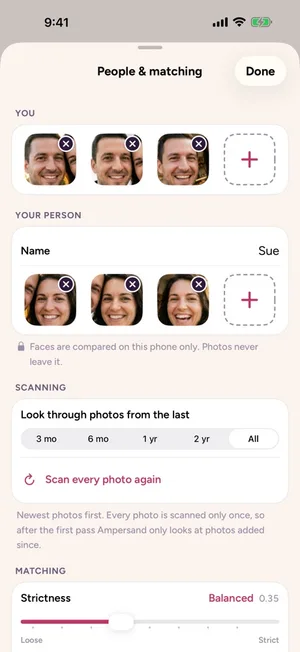
Open the ⋯ menu and choose People & matching to manage how Ampersand recognizes the two of you. The reference photos under You and Your person are what it compares against. Add or remove them any time; a few across different years and settings work better than one perfect portrait.
Look through photos from the last sets how far back Ampersand looks, from three months to all time. Start narrow on a big library and widen it later. Every photo is scanned only once, so after the first pass Ampersand only looks at photos added since. Scan every photo again starts over.
Below that, a strictness slider controls how confident a match has to be. Move it toward Strict if look-alikes are slipping in, toward Loose if photos of you two are missing. Faces are compared on your phone only.
The people in these screenshots are fictional, and the dates and notes are sample data.
Common questions
If something looks off.
My logbook is empty.
Ampersand needs three things: access to your photos, reference photos of both of you, and at least one photo in the scan range that shows you both. If the logbook says No photos of you two yet, open the ⋯ menu → People & matching and try lowering the strictness, adding more reference photos, or widening the scan range.
A photo of the two of us is missing.
Both faces need to be clear enough to match. Add reference photos from different years, angles, and lighting, then lower the strictness a step on the People & matching screen. Also check the scan range: a photo older than the range isn't looked at. Screenshots are skipped.
Ampersand added a photo that isn't the two of us.
Open the entry and tap Remove from the logbook. If it keeps happening, move the strictness slider toward Strict on the People & matching screen. Changing the strictness or the reference photos re-checks the photos Ampersand has already scanned.
The place is wrong, or there isn't one.
Ampersand names the place from the location saved with the photo. If it picked the wrong spot, tap Change on the entry to choose another place nearby or the street address. If the entry says No location saved with this photo, the photo has no location, which is common for photos received in a message or taken with location turned off for the camera. Place names also need an internet connection the first time each one is looked up.
The first scan is slow.
Ampersand looks at every photo in the scan range once, on your phone. If your library uses iCloud with Optimize iPhone Storage, photos that aren't on the device download first, which is the slow part. Choose a shorter range on the People & matching screen (three months up to all time) and widen it later. The scan runs while the app is open, and photos of you two appear as they're found, newest first.
I gave Ampersand limited photo access.
Limited access works, but Ampersand can only search the photos you selected. To let it search your whole library, open Settings → Privacy & Security → Photos → Ampersand and choose Full Access.
I removed a photo by mistake.
Open the ⋯ menu on the logbook and choose Restore removed photos. Removing a photo only takes it out of the logbook; it never touches the photo in your library.
Does Ampersand change anything in my photo library?
No. Ampersand reads your photos. It never adds, edits, or deletes anything in your library. Notes and stickers are kept in the app, not written to the photo.
Will my notes and stickers move to a new iPhone?
They are stored in the app on your phone and are included in your iCloud or computer backup. They are tied to each photo as this phone identifies it, so on a different phone they may not reattach to the same photos.
How do I remove everything Ampersand has stored?
Delete the app. Everything Ampersand keeps, including your notes, stickers, reference photos, and cached face data, lives in the app's private storage on your phone and is removed with it. Ampersand has no account and no server, so there is nothing to delete anywhere else.
What does Ampersand need to run?
An iPhone running iOS 17 or later, with photos of the two of you in your library.
Privacy
Private by design.
Ampersand has no account, no server, and no analytics. Your photos, your faces, and your notes never leave your phone. The one thing that does is a photo's coordinates, which go to Apple Maps to name the place.
Photos
Ampersand looks through your library for photos that show the two people you choose, comparing faces to your reference photos with a model built into the app. No photo or face data leaves your phone, and your library is never modified. Revoke access in Settings → Privacy & Security → Photos → Ampersand.
Places
To show where a photo was taken, Ampersand sends that photo's coordinates to Apple Maps and gets back the name of the place. Tapiki never receives the coordinates or the result, and no location permission is needed.
Everything Ampersand stores, including your notes, stickers, place names, reference faces, and cached face data, lives in the app's private storage on your device and is removed when you delete the app. It may be included in your own iCloud or computer backup, which is under your control.
The full policy is in the Tapiki App Privacy Policy, under Photos and Places (Ampersand).
Contact
Still stuck, or have an idea?
Ampersand is made by a small team in Hawaiʻi and we read every message. Email us and you'll hear back from a person.
Get help
Tell us what you expected, what happened instead, and your iPhone model and iOS version. A screenshot helps, but please don't send personal photos you'd rather keep private; we don't need them.
Email supportShare feedback
A feature you wish Ampersand had, something that felt confusing, or a note about how it's working for you. Ideas from people using the app shape what we build next.
Send feedbackYou can also write to sayhello@tapiki.ai or by mail at Tapiki, PO Box 970944, Waipahu, HI 96797.